Modules
Module Definition and Structure
Our CRM platform uses a Module System to provide flexible and tailored solutions to users. This system enables quick setup with predefined templates tailored to specific industries and processes, while also offering full customization support.
What is a Module?
A module is a data management area specifically designed for a business process or data type. Each module includes fields, sections, and workflows aligned with your operations. These modules:
- Enable systematic data collection,
- Present data through user-friendly interfaces,
- Turn it into meaningful insights via AI-powered analytics.
Module Types
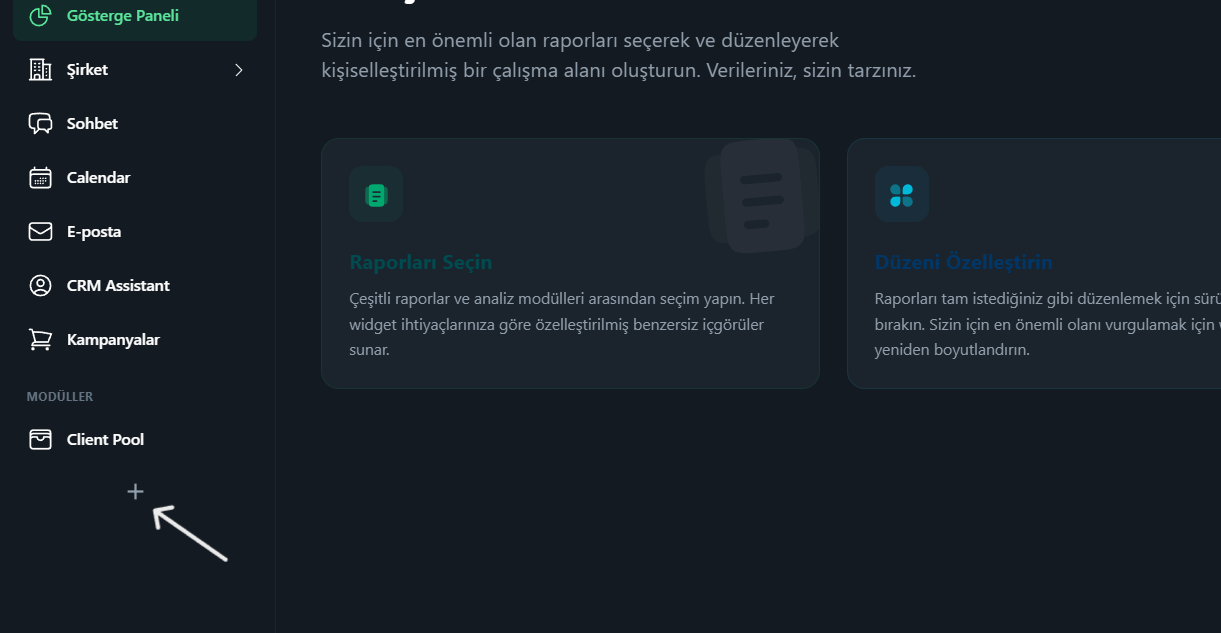
Click the + button to create a module. Modules can be created using predefined templates, custom modules, or by adding a Drive module.
Predefined Module Templates
Predefined templates are designed for specific industries and workflows. They include predefined sections and fields for quick setup. Users can select these templates and customize them as needed.
| Category | Description |
|---|---|
| E-Commerce | Templates for payment, order, product, and customer management. |
| CRM | Templates for managing customer profiles, contracts, tasks, and sales. |
| Health Tourism | Templates for patient records, appointment scheduling, and treatment plans. |
| Clinics | Templates for patient files, doctor calendars, and medical inventory. |
Custom Module
You can create a module from scratch based on your company’s unique needs. Go to the Custom Module tab, enter an icon and name, and complete the creation. Fields, sections, and rules within the module are fully customizable.
Once created, go to Settings > Customize and configure the following:
-
Section Management: Create logical groups to organize data better. Sections can represent various categories and be renamed, edited, or deleted as needed.
-
Field Configuration: Define fields like text, number, date, dropdowns, etc., and apply validation rules (required, character limits, format control) to ensure data quality.
-
Interactive Layout: Rearrange fields and sections via drag-and-drop for a clean and intuitive structure.
-
Advanced Settings: Set conditional visibility, field relationships, or dynamic behaviors based on user actions to create a smart and flexible workflow.
This allows you to build fully customized, industry-specific data management modules.
Drive Module
- Choose a name and icon to create a Drive module.
- Share the files to be imported through Google Drive with the Caresept system.
- Use the + Add New Drive Info button to link files to the module.
- Go to Settings > Knowledge Base and activate the knowledge base to complete setup.
File sharing and knowledge base activation are required for the Drive module to function.
Module Settings
Module Settings is where each module’s core configurations are defined.
Module Details
In this section:
- Update the module name and icon for appearance customization.
- Delete the module permanently if needed.
Knowledge Base
The Knowledge Base defines the purpose, data structure, and usage scenarios of your module for the AI engine. This allows the system to better understand the module and perform more accurate analysis and automation.
- Helps AI interpret the module and its data correctly.
- Clarifies field relationships and purposes.
- Enables better suggestions, error detection, and data classification.
-
Write a Description:
Clearly describe the module's purpose, what data it includes, and how it is used. (Minimum 20 characters required.) -
Activate:
Make sure the toggle for enabling the Knowledge Base is turned on.
Pipeline
Pipelines are a management system where you can easily drag and drop your records between different stages and visually track your workflows. With the pipeline view, you can manage your business processes more smoothly and in a more organized way.
Pipeline Features
- Drag-and-Drop Movement: Move records easily between stages.
- Stage Transition Controls: Set rules and required fields for moving between stages.
- Record Data Customization: Choose which fields are visible in each stage.
How to Create a Pipeline
-
Click the + Create Pipeline button.
-
Select the Pipeline Type:
- Sales Pipeline: Used to manage sales processes.
- Support Pipeline: Suitable for support and customer service workflows.
- Custom Pipeline: Create a flexible structure tailored to your own workflow.
-
Enter Pipeline Details:
- Give your pipeline a name.
- Optionally, add a description.
-
Define Pipeline Stages:
- Stages (e.g., New Lead, Contact Made, Qualified) will be added automatically, or you can add new ones.
- You can drag and drop to reorder, edit, or delete the stages.
-
Save and Use:
- Once your pipeline is created, you can easily move records between these stages.
Pipeline View
Use the "Kanban View" to:
- View all records as cards in their respective stages.
- Access record details quickly.
- Drag and drop to move records between stages.
This way, you can manage workflows easily and always track their real-time status visually.
Customize
The customization section allows you to configure the structure and behavior of your module based on your needs, making it more functional and efficient.
Section Management
- Group different data categories into sections.
- For example, in a customer module, create a section called Customer Info and add relevant fields under it.
Field Configuration
- Add fields such as text, number, date, or dropdowns to collect structured data.
- Apply validation rules (required, limits, formatting) to maintain data quality.
Interactive Layout
- Use drag-and-drop to rearrange fields and move them between sections.
- This creates a fully visual and intuitive interface.
Advanced Settings
- Define field visibility rules based on specific conditions.
- Create dependencies between fields or trigger automations based on user interactions.
Add Property
Click Add Property to insert new fields into a section.
Available field types include:
- Text
- Number
- Date
- File upload
- Dropdown selection lists
Each added field becomes an input element for data entry.
With customization, your modules can be fully adapted to your business needs and use cases.
Data Import and Export
You can import data into the system (upload data) or, in future updates, export it (download data).
This makes it faster to populate your system and streamline your processes.
Importing Data
Use a CSV file to import data.
CSV (Comma Separated Values) files let you transfer tabular data in a simple format.
Steps:
- Click Import CSV Data.
- Choose a CSV file from your computer.
- Each header must be mapped to a corresponding system field.
- In the Map CSV Headers to Fields screen:
- Match each CSV header to a system field (e.g.,
Model→Car Model,Price→Price). - If a header should not be imported, select “Do Not Import”.
- Match each CSV header to a system field (e.g.,
- After mapping all headers, complete the import.
Exporting Data (Coming Soon)
Access Management
Access Management controls what permissions different roles have within each module. This ensures that every user only sees and edits what they are authorized to.
How It Works
- Under Company Roles, see all defined roles (e.g., Manager, Agent).
- Under Available Permissions, assign specific access rights such as read, update, delete.
You can assign permissions module by module for each role.
Step-by-Step Use
Select Role:
Choose a role from the list (e.g., Manager).
Define Permissions:
Select the permissions you want this role to have.
Example permissions:
dataModule.read→ View data in the moduledataModule.update→ Edit recordsdataModule.delete→ Delete recordsdataModule.settings.update→ Modify module settings
Assign Permissions:
Click Assign Permissions to apply the settings.
Important Notes
- Access permissions are configured separately for each module.
- A role may have access in one module but not in another.
- This system improves data security and ensures users can only access their own workflows.
Using this method, you can give each user the access they need while preventing unnecessary access.
Conversion Rules
Conversion Rules allow you to automate data transfers between different modules. By defining these rules, you can convert records from one module to another with a single click, reduce manual data entry, and maintain data consistency.
Why Use Automated Data Conversion?
- One-Click Conversion: Records are quickly transferred to another module based on predefined rules.
- Smart Field Mapping: Matches fields accurately to prevent data loss.
- Time-Saving: Automates repetitive data migration tasks.
- Data Integrity: Maintains standards and reduces errors in transferred data.
How to Create a Conversion Rule
Click the + New button. In the form that opens, fill in the following:
- Target Data Module: Select the module where the data will be transferred.
- Rule Name: Provide a descriptive name for the conversion rule.
Field Mapping:
Match each field in the source module with a field in the target module.
- For example: map a
Textfield to anotherTextfield in the target module.
Save:
After completing the mappings, click the Save button to create the conversion rule.
Manage Rules
- View, edit, or delete all your rules from the Manage Rules section.
- You can define different conversion rules for each module.
Important Notes
- Conversion rules make inter-module data transfer much faster and error-free.
- Smart mappings minimize data loss and inconsistencies.
- Maintains data integrity and speeds up business processes.
With conversion rules, you can automate your workflows, save time, and simplify data management!
Easy Email
The Easy Email module allows you to create email templates with dynamic fields to send personalized emails. You can design, send in bulk, or automate emails through this module.
Features
- Visual Template Editor: Create email templates using a drag-and-drop intuitive editor.
- Dynamic Fields: Add auto-updating data fields into your email (e.g.,
{name},{surname}). - Bulk Sending: Send personalized emails to multiple recipients at once using a single template.
Steps to Create an Email Template
Select Data Module
- Choose the data module that contains the fields to be used in the email.
- For example, select the "Customer" module for customer-specific data.
Select Sender Email
- Choose a verified email address to send from.
- If no verified address exists, add a new one.
Choose Template
- Select a ready-to-use template or create a new one from scratch.
- You can include elements like headings, text, images, and buttons.
Select Recipients
- Choose your target audience: define the individual(s) or group(s) the email will be sent to.
Match Dynamic Fields
- Match placeholders in the email with real data fields.
- For example,
{name}will be replaced by each recipient’s actual name.
Name the Template
- Give your template a meaningful name.
- This helps you find it easily later.
Finally, click Save to complete template creation.
Manage Email Templates
- View all created templates under the Email Templates section.
- You can edit, delete, or reuse any template.
Important Notes
- Dynamic fields ensure each user receives a personalized message.
- Using a verified email address improves delivery reliability.
- You can update your templates at any time and reuse them for future campaigns.
With the Easy Email module, you can run fast, effective, and professional bulk email communication.
Automation
Automation allows the system to perform certain actions on your behalf.
For example, you can send notifications when a record is updated or trigger emails based on specific conditions.
With automation in Caresept, you can:
- Speed up workflows,
- Reduce errors,
- Automate repetitive tasks without manual intervention.
Types of Automation
When creating a new automation, you can choose between two types:
Workflow Automation
Classic workflows triggered by events in data modules and composed of blocks like notifications, conditions, and email.
Assistant Behavior
Use this to define a specific behavior for your AI assistants.
How to Use
Create Automation
- Click the New Automation button.
- Select the automation type (Workflow Automation or Assistant Behavior).
- Name the automation and optionally provide a description.
- Click Create to proceed.
Create First Version
- A blank screen will appear. Click Create First Version to start designing.
Add Blocks
You can choose from the following block types:
-
Data Event Trigger
Starts the automation when a record is added, updated, or deleted in a module. -
Send In-App Notification
Sends a notification to users within the system. -
Webhook Trigger
Starts the automation when an HTTP request is received from an external system. -
Condition
Defines logical rules for decision-making (e.g., “user type = customer”). -
Send Email
Sends automated emails using pre-designed templates and record data.
Connect Blocks
- Click the + icon beneath each block to link them.
- In condition blocks, manage True and False branches to create logic branches.
Complete Settings
- Click each block to fill in the necessary information.
- If required information is missing (e.g., no user selected), the system will highlight it in red.
- Once all components are configured, your automation is ready.
Activate the Automation
After the design is complete, switch the "Draft / Active" toggle in the top menu to Active.
Note: You cannot edit an automation while it's active. Deactivate it to make changes.
Example Scenario
“Send a notification to managers when a customer record is updated”
- Data Event Trigger: Triggers on update in the
Customermodule. - Condition: If
Role=Manager - Send In-App Notification: Sends “Record updated” to users with the Manager role.
Version Control
- Automations support versioning.
- Use Create New Version to keep previous versions while building new ones.
This way, you can automate repetitive tasks, save time, and make your workflows more secure and efficient.
Reports
With Caresept’s reporting tool, you can turn your datasets into AI-powered visual reports and easily visualize your insights.
This feature lets you create meaningful charts by simply describing what you want—no coding or manual configuration needed.
How to Use
Open the Data Tab
- First, open a data module and select the records you want to filter.
- The visualization is created based on the current filtered dataset.
Create a New Report
- Click the Create Report button.
- In the form that appears, answer the question “What would you like to see?”
- The more detailed your prompt, the better the output.
Example Prompt:
Create a bar chart showing monthly sales trends for each product category in 2023, sorted by total revenue, highlighting the top 3 performing categories.